
What is a Saved Report?
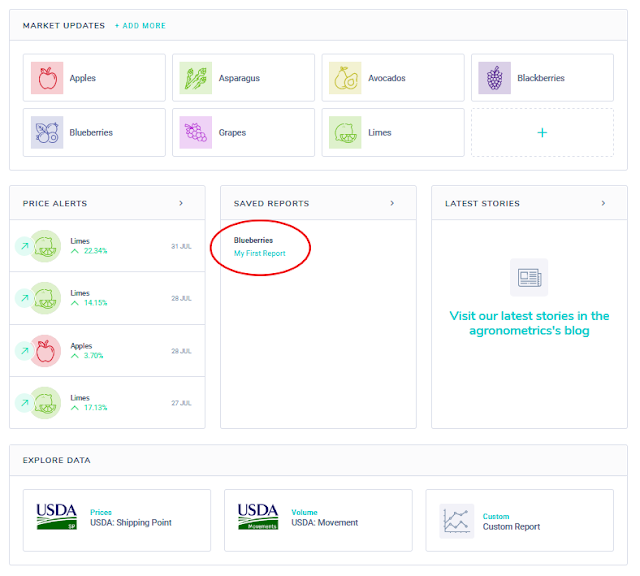
Creating a Saved Report allows you to have immediate access to any report in Agronometrics from the Dashboard or the Saved Reports section.
How to save a Favorite Report?
Once you have opened a report that you want to have immediate access to, saving a report is a simple three-step process:
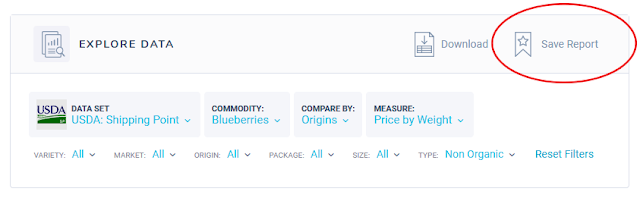
1. Click the ‘Save Report’ button
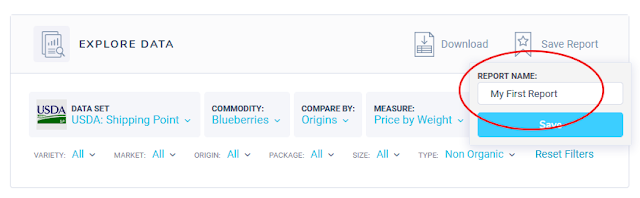
2. Type the name of the report you want to use, and
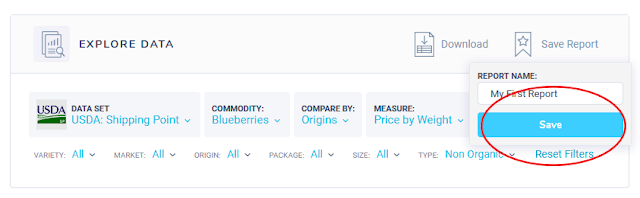
3. Click ‘Save’.
Now you will be able to access this report right from the Dashboard and the Saved Reports section.
Other helpful articles:
For additional information that could be relevant to this topic, please use the following link: